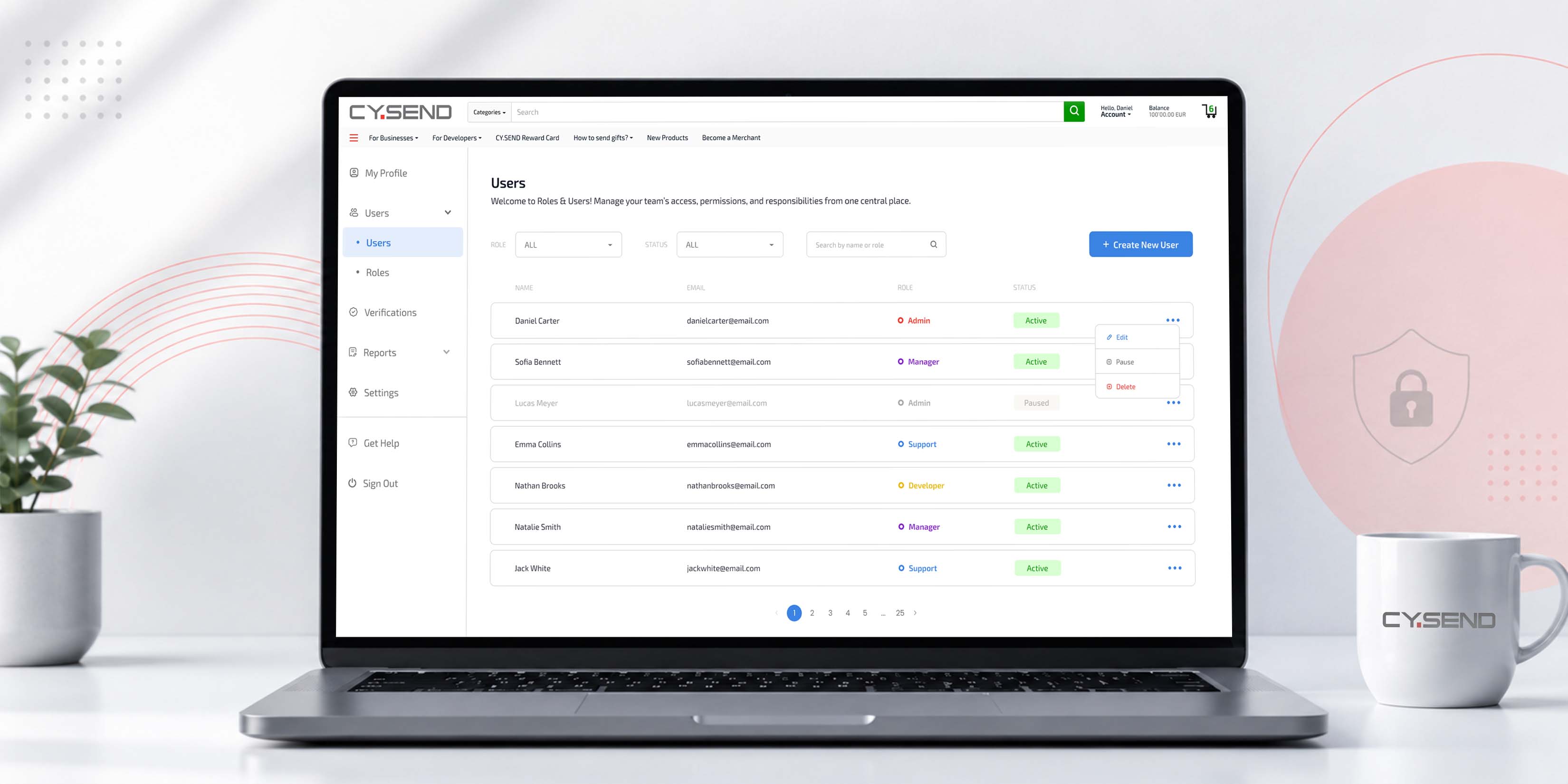
What it is: A security feature within your CY.SEND Merchant Account that allows you to invite team members and assign them specific operational permissions.
What it’s for: It eliminates the need to share a single password among your staff. By granting unique access levels, you secure your financial data while ensuring your team has the exact tools they need to do their jobs.
How it works
Follow these simple steps to add and manage your team members:
1. Access the Team Settings
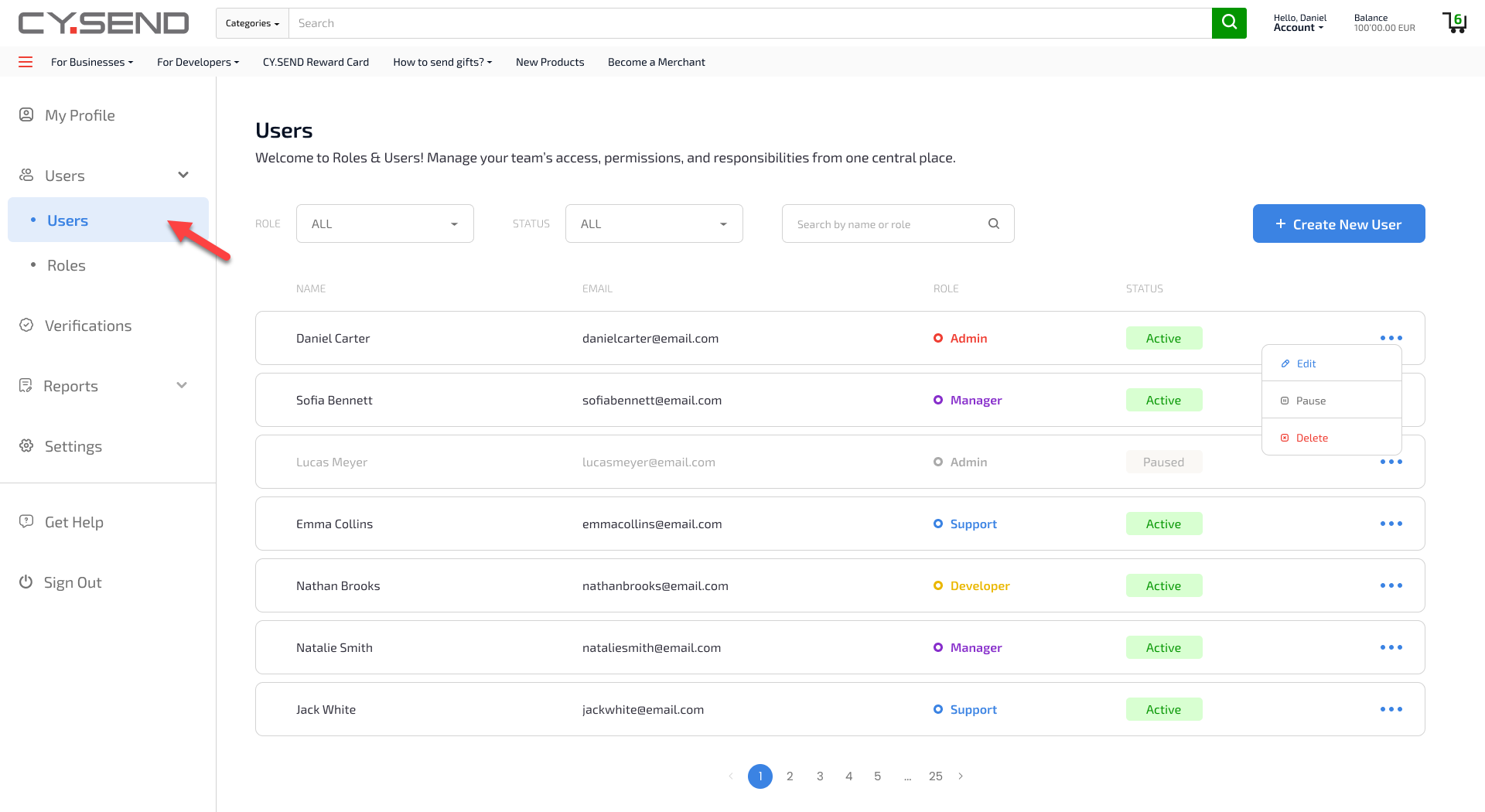
Log into your CY.SEND Merchant Account dashboard. In the main navigation menu, click on Settings and select Roles & Users.
.jpg)
2. Invite a New User
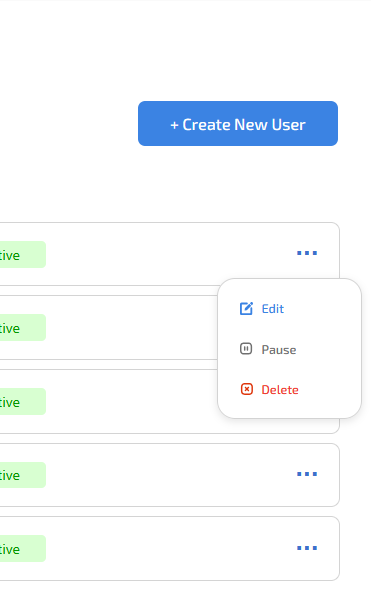
Click on the "Create New User" button located at the top right corner of the management screen.
3. Enter Details and Select a Role
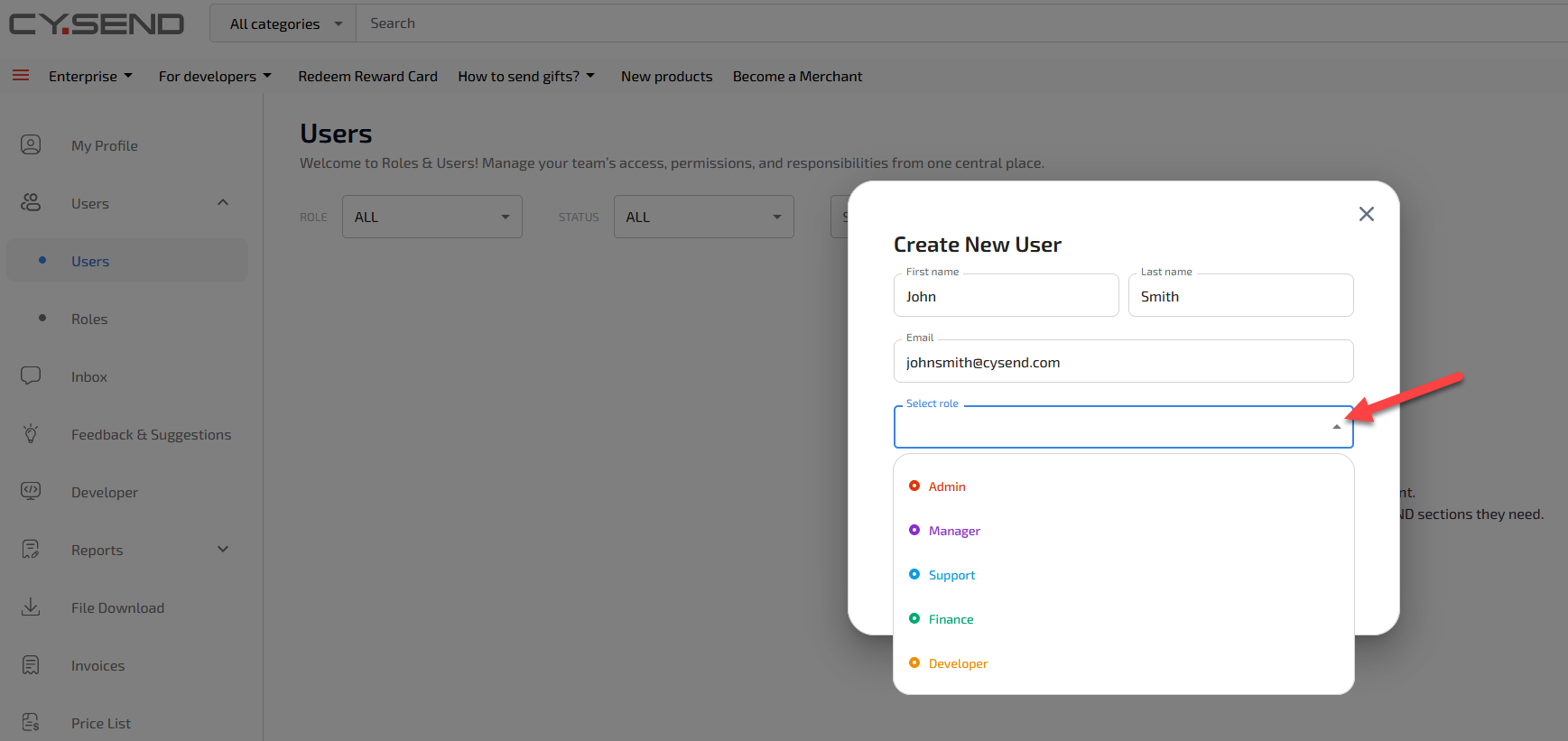
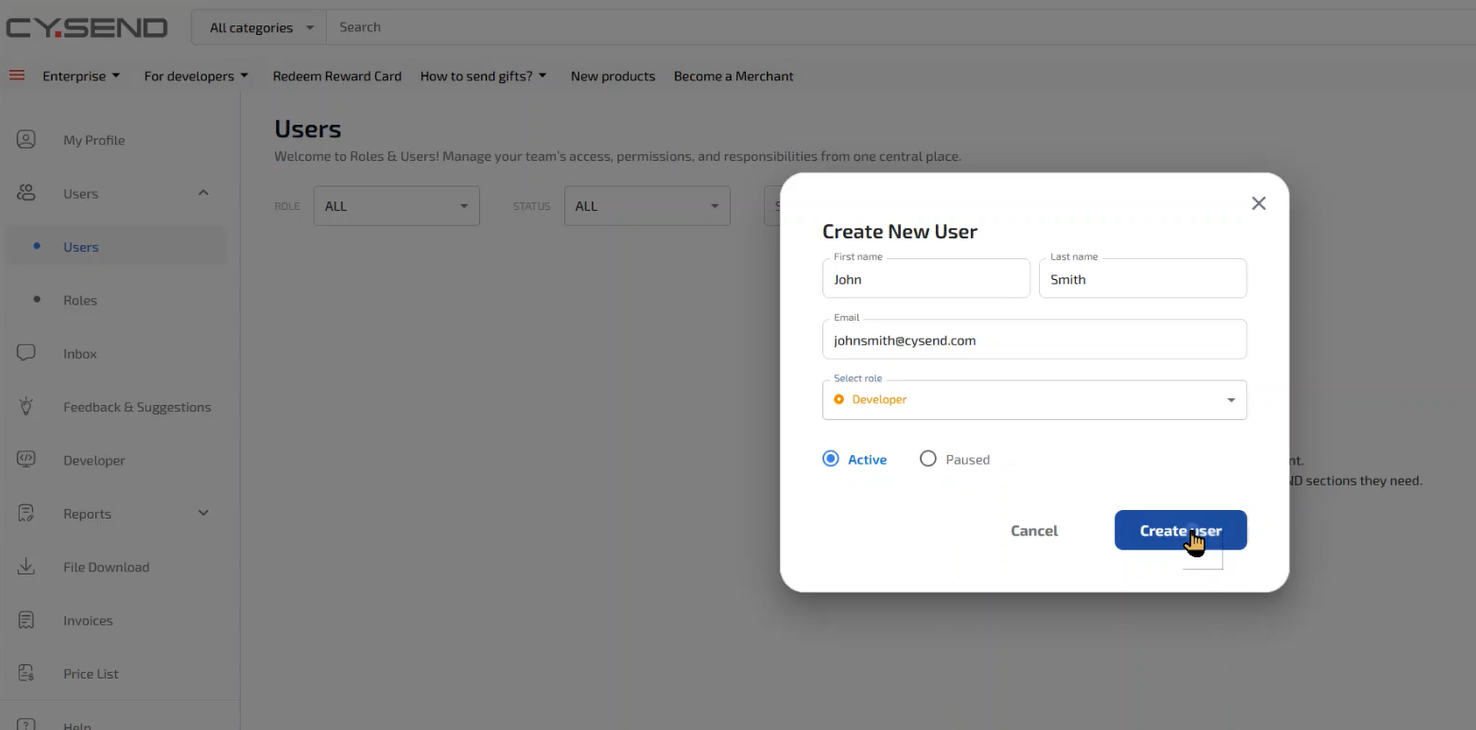
A pop-up form will appear. Input the user's corporate email address, and select one of the four static roles from the dropdown menu.
.jpg)
4. Send the Invitation
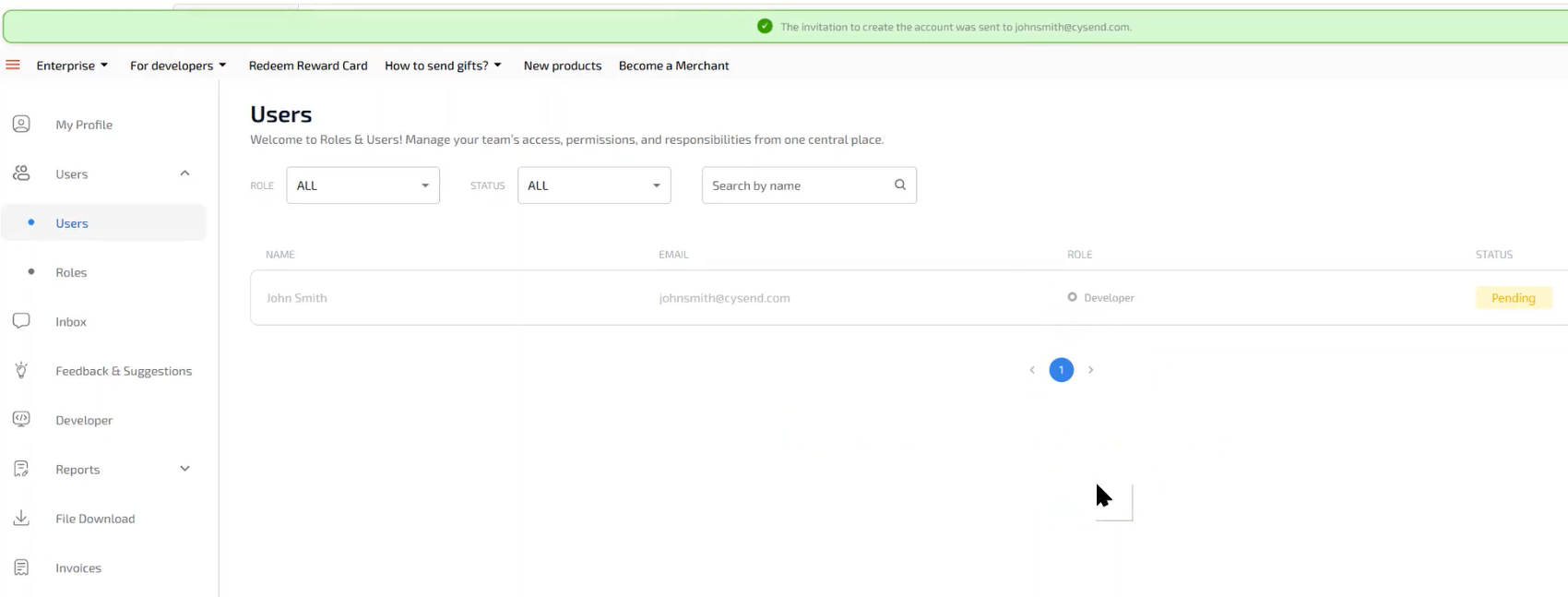
Click "Create User." The user will receive an email containing a secure link to set up their password and access your dashboard.
Profile features & use cases
Permissions in CY.SEND are static and predefined to ensure system stability and fast onboarding. Use this matrix to choose the right fit for your team members:
| Role | Key Capabilities | System Restrictions | Practical Use Case |
|---|---|---|---|
| Admin | Full system control: manages security settings, API configurations, and users. | None. | The Business Owner / IT Director: Can temporarily pause the access of any department manager or user while they are on vacation, without needing to delete and recreate their profile later. |
| Manager | Oversees daily broad operations, views performance metrics, and accesses tools. | Cannot alter critical security or global account configurations. | The Operations Supervisor: Perfect for the team leader who needs to monitor overall performance, run day-to-day business logistics, and coordinate workflows without touching company bank settings. |
| Finance | Full access to financial balances, monthly invoices, and transaction export reports. | Cannot manage system users or interact with customer support tools. | The Accountant / Bookkeeper: Ideal for internal accounting teams or external financial consultants who only need to download monthly statements and run financial audits for closing periods. |
| Support | Can search specific orders, check transaction statuses, and track system activity logs. | Completely locked out of financial balances and account configurations. | The Customer Service Agent: Designed for front-line support staff who need to instantly look up a customer’s missing or delayed order to solve a ticket, while keeping corporate funds fully protected. |
| Developer | Full access to API configurations, webhook setups, OpenAPI keys, sandbox/testing environments, and technical integration logs. | Completely restricted from viewing financial balances, downloading invoices, or modifying corporate bank settings and payouts. | The Web Developer / Integration Engineer: Ideal for your technical team or external freelance developers who need to generate API keys, test checkout flows, and configure endpoints to integrate CY.SEND into your systems, without risking exposure to your actual business revenue or user management. |
Frequently asked questions (FAQ)
Q: Is there an extra cost for adding more users to my Merchant Account?
A: No. You can add as many team members as your business requires at no additional charge.
Q: Can I assign multiple roles to a single user (e.g., both "Manager" and "Finance")?
A: No. Because our roles are predefined and static to maintain strict security standards, a user can only be assigned one role at a time. If a team member needs access to both operational and financial sections, we recommend assigning the "Admin" role, or creating two separate user accounts for them if you need to isolate their activities.
Q: What happens to past transactions and data if I delete or deactivate a user?
A: Deleting a user only revokes their access to the platform; it does not erase their footprint. All past transactions, approvals, and actions performed by that user will remain in the account history for compliance and auditing purposes. The system will continue to show their name/email associated with those past actions.
Q: What should I do if a team member forgets their password?
A: The user can click "Forgot Password" on the login screen to trigger a secure reset email. Alternatively, an Admin can click "Resend Invitation" or "Reset Password Link" directly from the Roles & Users dashboard.
Ready to onboard your team? Log in to your Merchant Account Dashboard and invite your first team member today.